Video
Introduction
Do you want your iPhone to play a sound every hour? This guide walks you through, step by step, how to create an iOS shortcut that automatically makes your devices (iPhone, iPad, Mac) beep on the hour. We will use Apple’s “Note” sound, which we will download and convert into a compatible format with the Shortcuts app. You will also be able to restrict the active time range to avoid nighttime alerts.
To follow this tutorial, you’ll need an iOS device (iPhone, iPad, or Mac) with the Shortcuts app installed. In my case, my devices are running iOS 26.2. You won’t need to install any third‑party apps: everything is done directly through Apple’s Shortcuts app.
How It Works
Before getting started, let’s quickly look at how the whole system works. The idea is to create a loop that automatically activates and deactivates every hour. To achieve this, we will combine two elements: iOS shortcuts and a dedicated Focus mode. Why use a Focus mode? Because it can be turned on or off through shortcuts, which allows us to create an autonomous loop. Below is a simple diagram to make it easier to understand:
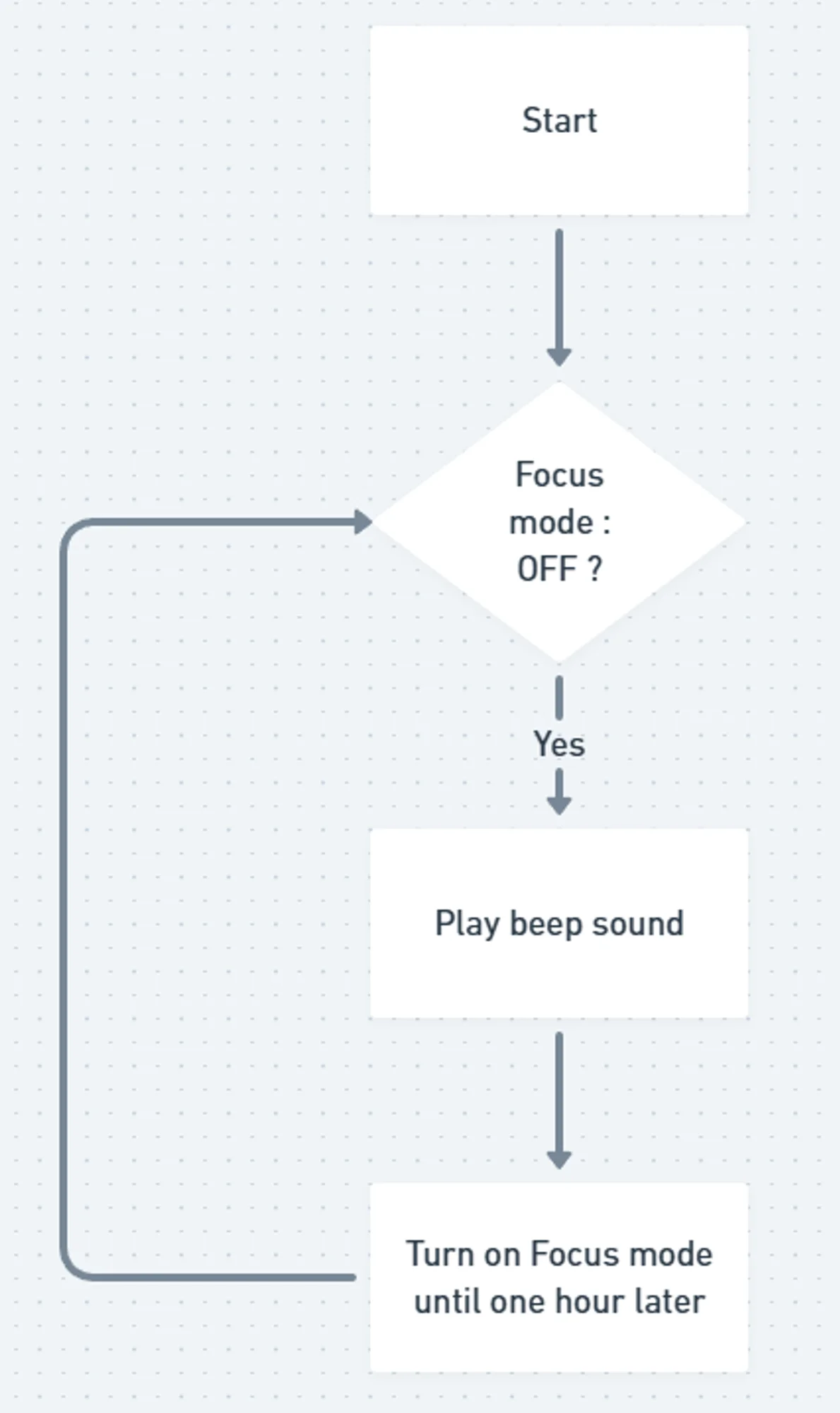
Here’s the principle: when the Focus mode turns off, an automation triggers a first shortcut. This shortcut plays the sound (the beep), then reactivates the Focus mode until the next hour. At the next hour, the mode turns off again, restarting the loop. Each activation/deactivation transition produces the beep, without any manual action required.
Before creating the shortcuts, let’s start by preparing the sound we’ll use.
Preparing the Sound
For this tutorial, we will use the “Note” sound, a signature tone of the Apple ecosystem. Since it isn’t directly accessible in the Shortcuts app, you must first download it and then convert it to Base64 so it can be played through shortcuts.
Start by downloading the sound from YouTube or any other source. If you have a YouTube Premium account, the process is very simple. Then convert the file to Base64. This text-based format is lightweight and compatible with the decoding actions in the Shortcuts app. To do this, go to https://www.base64encode.org/, upload your file, and retrieve the generated text (The key elements are highlighted in red in the following figure.).
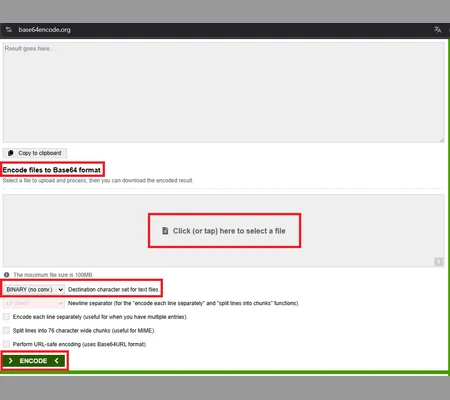
Copy the entire content: you will need it when creating the first shortcut.
Creating the Sound Shortcut
In this first shortcut, we will handle sound playback.
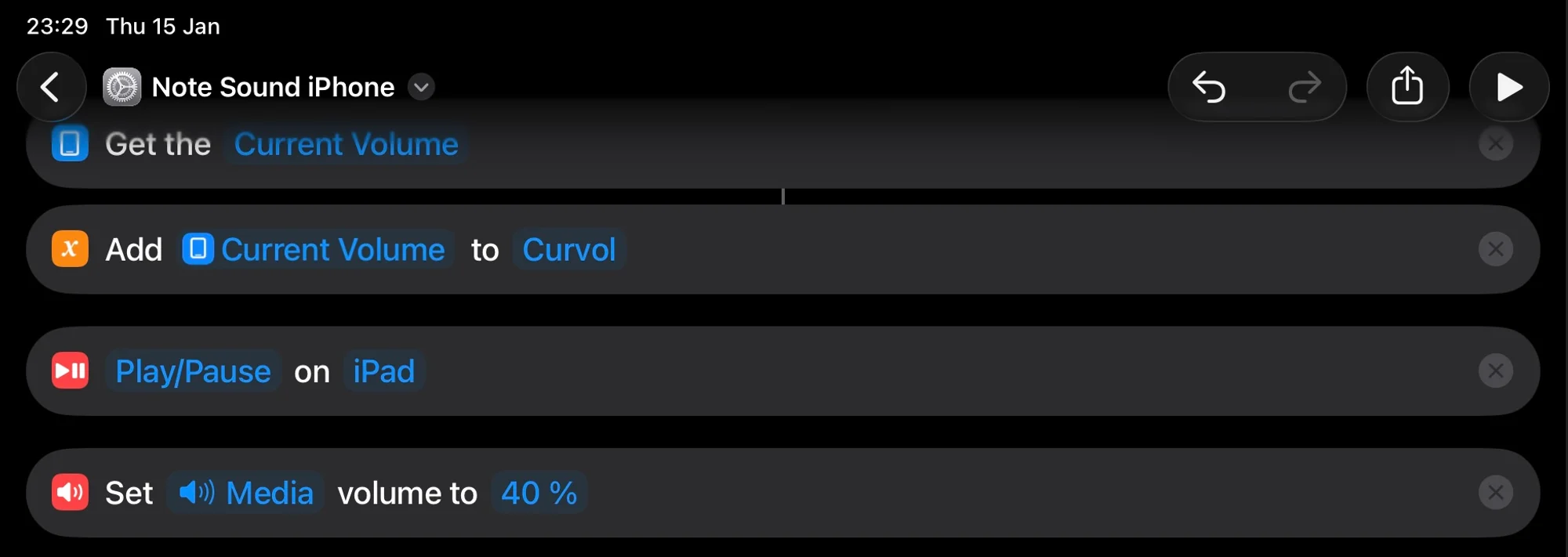
Start by saving the current volume into a variable so you can restore it at the end. Before playing the sound, add an action to pause any media currently playing so the beep is clearly audible. Then set an appropriate volume level.
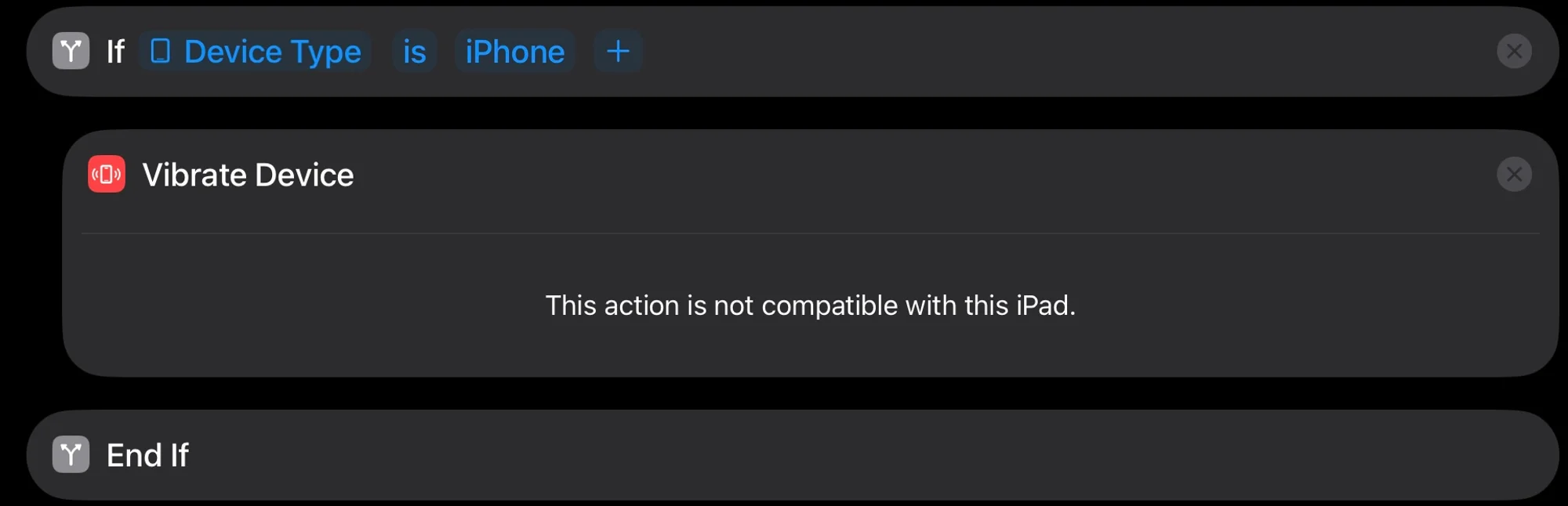
Add a condition to check whether the device is an iPhone: if so, you can make the iPhone vibrate. This step must be conditional because the vibration action does not exist on iPad or Mac (iPads and Macs do not vibrate).
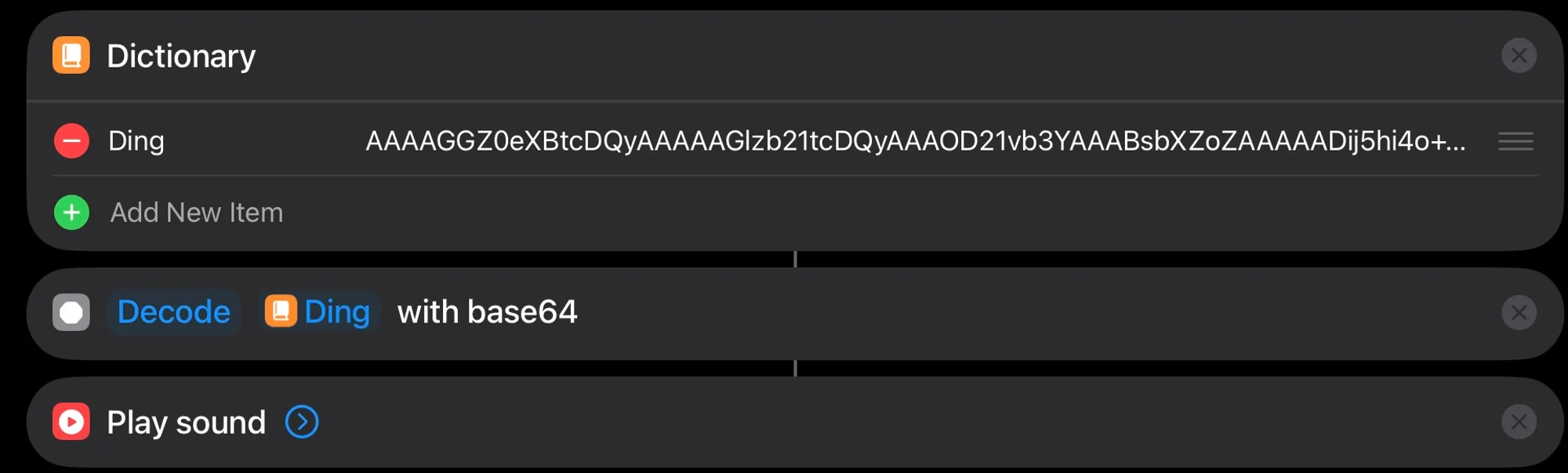
Next, create a dictionary with a key (for example “Ding”) and paste the Base64 text into it. Use the “Decode” action to obtain the sound, then test playback.

Finally, restore the initial volume. The first shortcut is now complete.
Creating the Loop Shortcut
Before creating the second shortcut, set up a new Focus mode dedicated to this automation. In this second shortcut, we will manage the time logic. Add the current date, then format it to extract only the hour. Since we want to limit notifications between 9 a.m. and 9 p.m., convert the hour to a number and check whether it falls within that range.
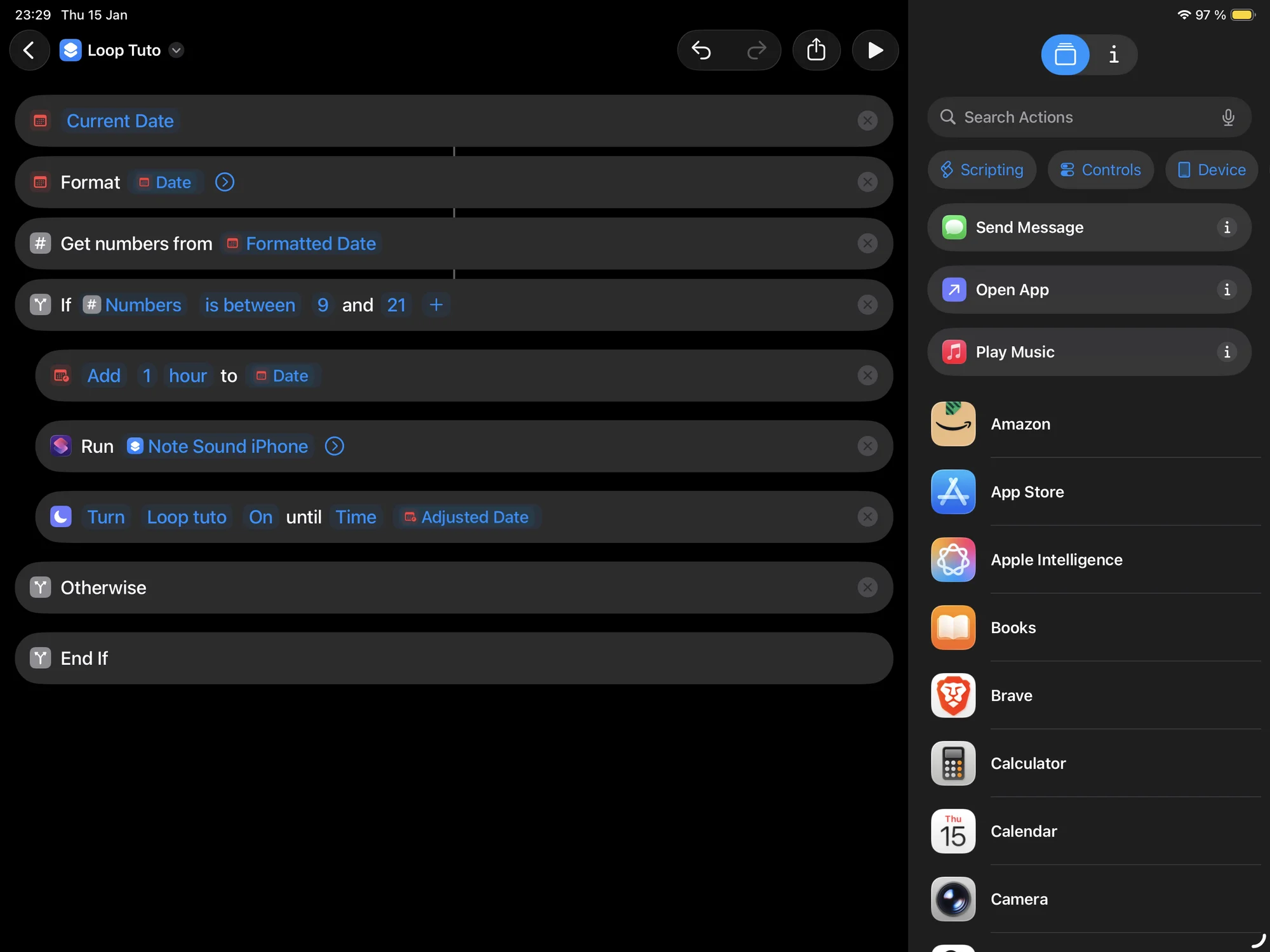
If the condition is met, add one hour to the current time, run the first shortcut (the one that plays the sound), and then reactivate the Focus mode for one hour. This is what maintains the loop.
The beeps can also act as a kind of alarm. It has happened to me that I slept until 9 a.m., and upon hearing the beep, I immediately knew the time without looking at my phone or my watch.
Creating the Automation
The automation is used to detect when the Focus mode turns off and to relaunch the second shortcut. In the Shortcuts app, open the Automations tab, select the Focus mode you created earlier, and choose the action to run when this mode is deactivated. Select the second shortcut.
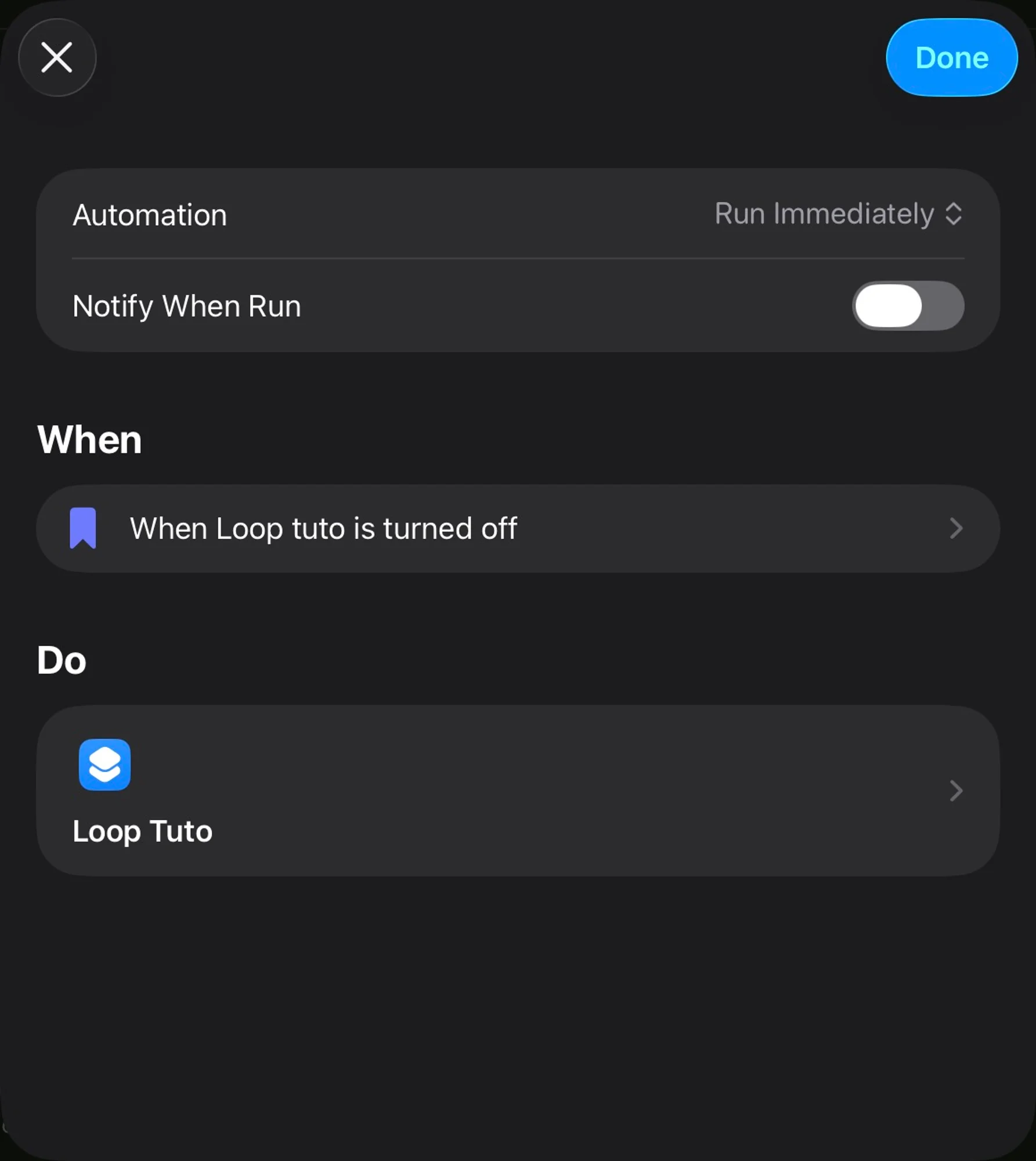
The loop is now created, you will only need to set up one last automation to trigger the loop every day at 9 a.m., for example.
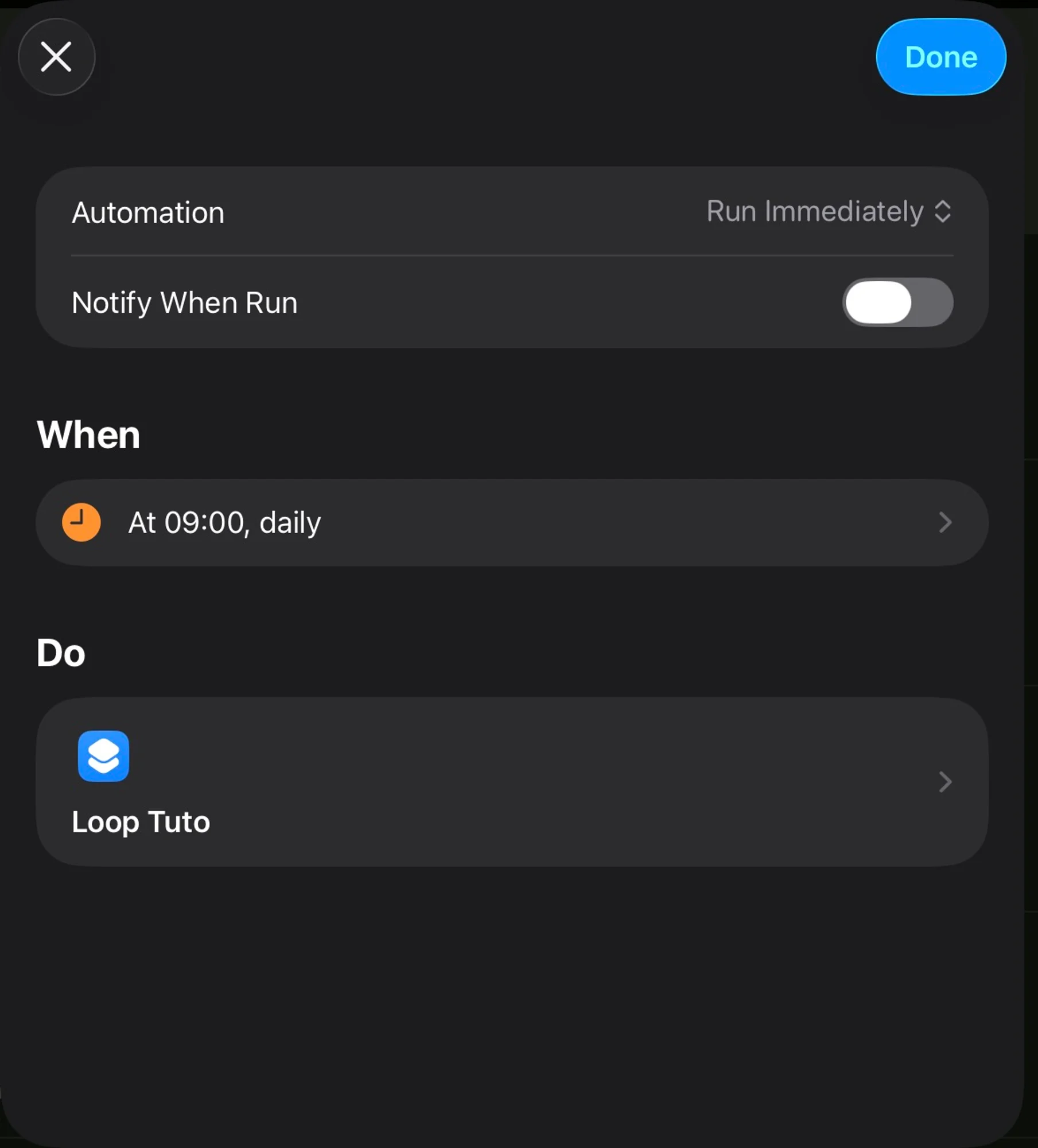
And now that all the steps are completed, the only thing left to do is the tests.
Tests
To quickly test the setup, replace hours with seconds (for example, 30 seconds).
If you run the test at 3:25 p.m., your device will beep at 4:25 p.m., 5:25 p.m., and so on. The next day, the shortcut will start at 9 a.m. (thanks to the automation that runs every day at 9 a.m), then produce beeps at 10 a.m., 11 a.m., and so on.It should also be noted that thanks to iCloud, the focus mode is shared across all your devices. As a result, it will turn on and off simultaneously on all of them, and your devices will therefore play the sound at the same time.
Bonus
You can reuse the “Note” sound for other automations, such as being notified when the battery reaches 100%.
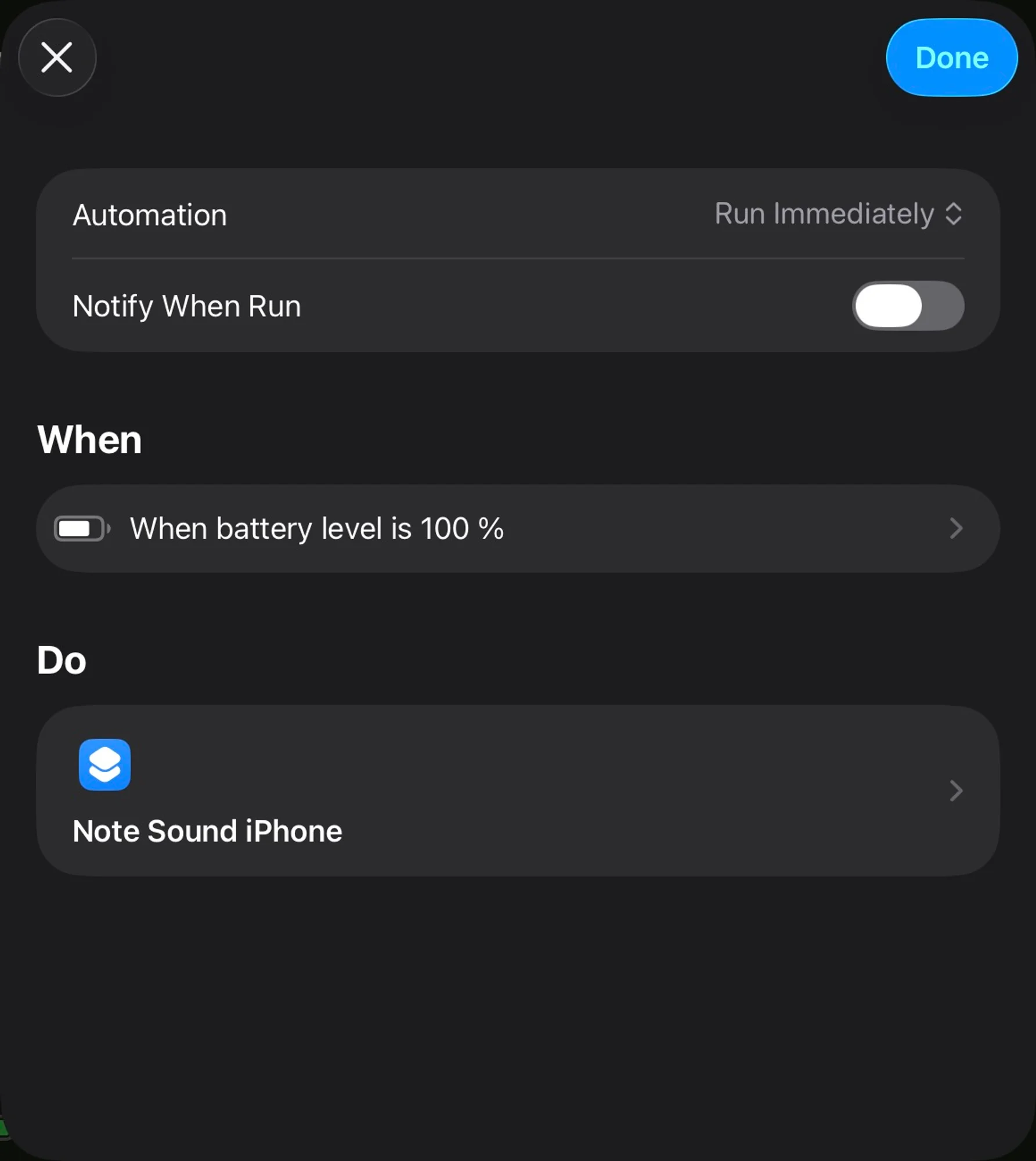
You can also customize the number of beeps depending on the device: one for the iPhone, two for the iPad, three for the Mac, etc.
Downloads
You can also find the shortcuts here :
- Sound shorcut : https://www.icloud.com/shortcuts/12ff335a49bf44e8bf3357c2f4d4f281
- Loop shortcut : https://www.icloud.com/shortcuts/3f0ba2fdced44d29bfe06e971b442a7c