The iOS 26.4 update brings several very interesting new features for iOS Shortcuts users. In this short post, I present the new actions available in iOS 26.4 Shortcuts, along with a few practical automation examples you can use daily.
Set the battery charge limit
iOS 26.4 introduces a new action that allows you to automatically set the battery charge limit based on different criteria. As a reminder, lithium ion batteries (like those in Apple devices) last longer when they remain within a charge range between 20% and 80%. Regularly charging your iPhone from 0% to 100% causes a temperature increase that accelerates battery wear. Therefore, the first range is a good compromise to use your device normally while preserving the battery in the long term.
Thanks to this new action in iOS Shortcuts, you can now automatically adjust the charge limit based on your location, your Focus mode, or other conditions. Here is an example of an automation where the limit changes depending on your position or the active Focus mode.
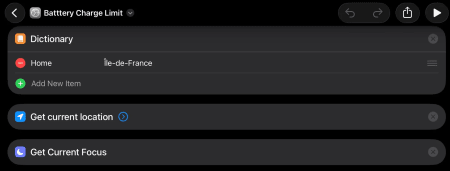
The first step is to retrieve the current location and the Focus mode. You also save the region where you live (making sure to use exactly the same string for comparison).
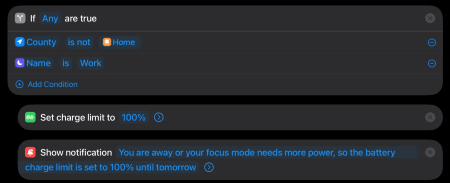
If your device detects that you are outside your usual area, or if a power hungry Focus mode is enabled, the charge limit automatically switches to 100% and a message is displayed.
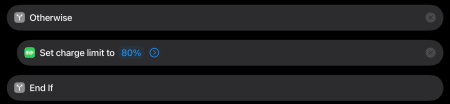
In all other cases, the limit is set back to 80% to preserve the battery.
Note that even if you set a charge limit, iOS may occasionally charge the device to 100% in order to recalibrate the battery health estimation.
To automate this behavior, you can, for example, create a daily automation that runs this shortcut at 12 p.m. every day.
You can download this shortcut at:.
If you want to be notified when your iPhone reaches 100%, you can also add a sound alert by following this tutorial: https://smarthome3d.com/articles/make-your-iphone-beep-automatically-every-hour-using-ios-shortcuts.
Multitasking
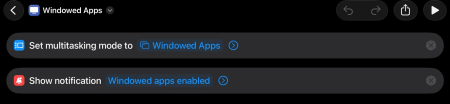
iOS 26.4 also allows you to control multitasking mode through Shortcuts. You can automatically enable Stage Manager, Windowed Apps mode, or Full Screen Apps mode depending on your needs.
Here is an example of automation:

When an external display is connected, a shortcut automatically runs to enable Stage Manager, a mode much better suited for using an external monitor.

You can also manage the disconnection of the display:
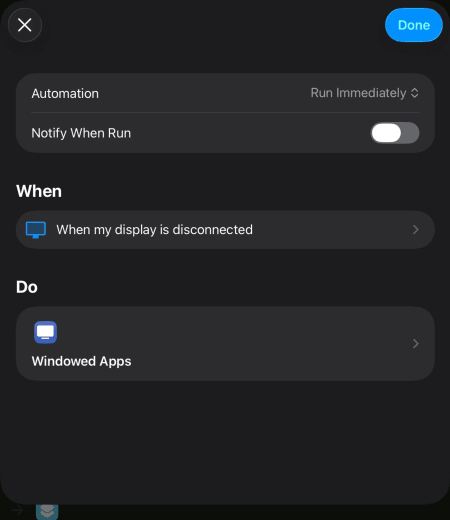
In this case, the shortcut reactivates Windowed Apps mode for a more comfortable experience when using the iPad alone.
Screen Time
iOS 26 also adds a new action that allows you to display Screen Time by period directly within Shortcuts. For example, you can trigger this shortcut each time you open a streaming app or a social network to better control your usage.
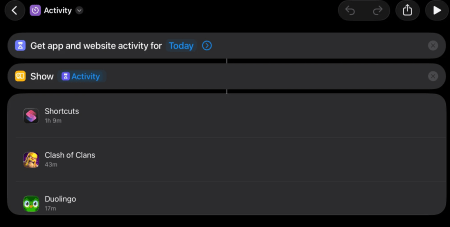
It’s a simple shortcut, but very useful for tracking and managing your Screen Time (especially if you want to reduce it).
Sports events
Another welcome addition: an action dedicated to sports events. It allows you to quickly get the upcoming matches of your favorite team, directly from an iOS Shortcut.
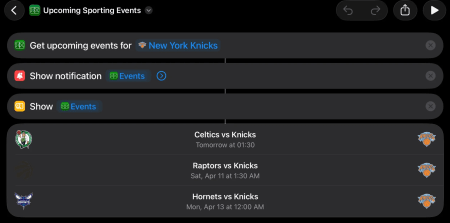
The only drawback is that you can only select one team for now. Hopefully, Apple will expand this feature in a future update.
You can find more new features and usage examples here: https://support.apple.com/en-us/125148 target .
Comments
No comments yet.